Tarot Reader Program Tutorial
2026-03-21
(08/22/26) UPDATE: I've made a github repository with a working demo from this tutorial you can download and use. See the post here.
You like tarot and programming, how about polishing up both skills at once? This is a pretty simple program using only html, css and some basic javascript, it’s how I created the Cloudland Oracle. So let’s make our own tarot reading program you can add to your site.
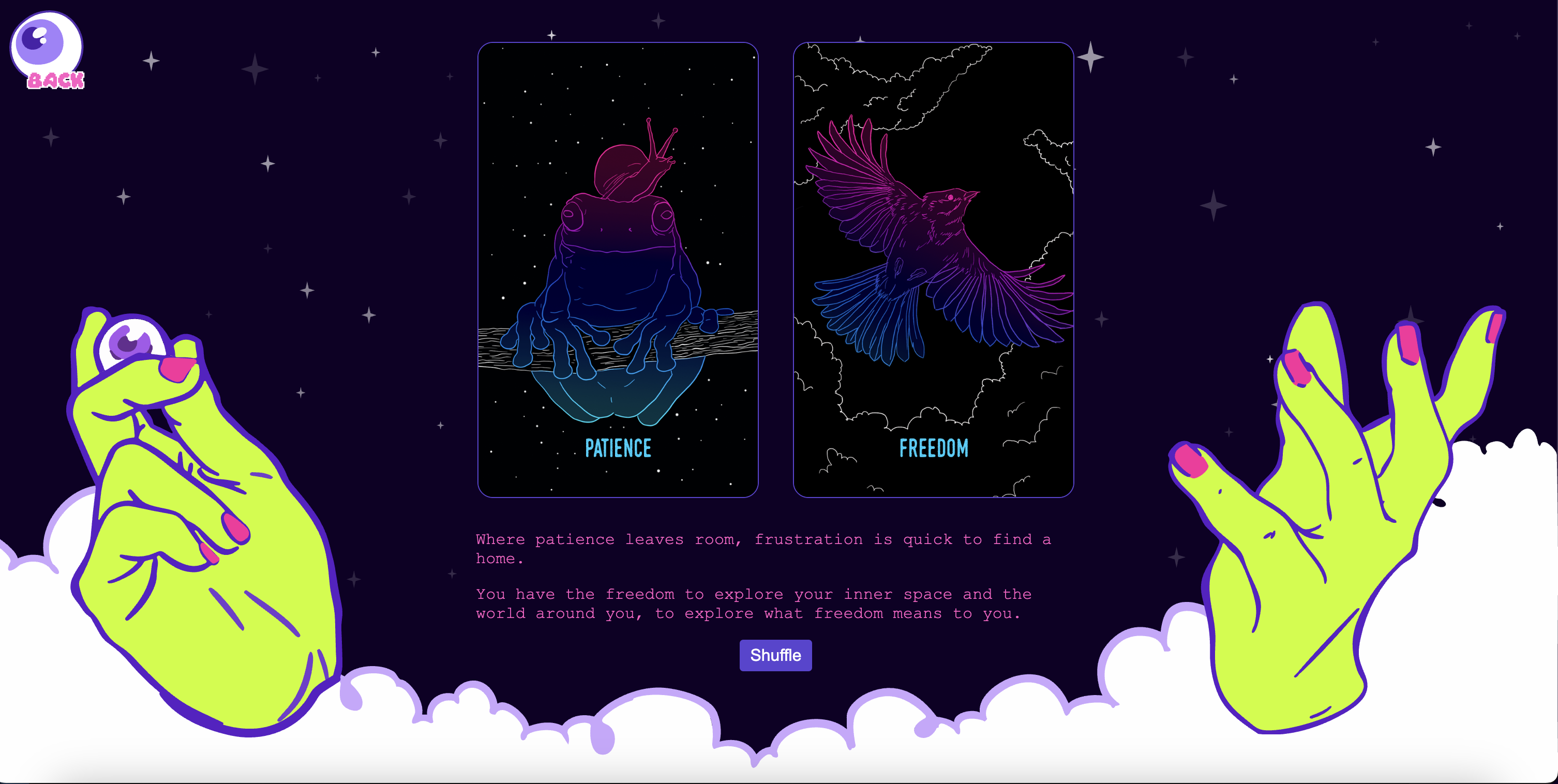
To start, we need a deck, for my program I used The Oracle of the Wild, an oracle deck I made a few years ago, but today we’re going to be working with the classic (now public domain and available for download in several sites, like Wiki Commons) Rider Waite Smith deck, unless you have a set of digital cards you’d rather use instead.
Now let’s talk about a bit about what we need our program to do. We can program our app to do all sorts of different spreads, the simplest version of this program just picks one card at random and returns it to us. But, if we decide later on we want to be able to do a three card spread, a five card spread, a Celtic cross, or whatever spread we want we would have to figure out some extra code so our program doesn’t return repeated cards. So the version we will be building today will return a two cards so we can adapt to code to different spreads if we want to down the line.
1: Setting up your files
To keep everything organized, let’s set up a folder for our program called Tarot Reader, with a subfolder for our deck images called imgs. Make sure all images have a simple name and the same file extension, so all pngs or all jpgs, and also make sure you have an image for the card backs (you can name it cardBack). Also create blank html, css and javascript files that you can just call index.html, style.css and script.js.
We’ll start by adding some boilerplate html to the index.html file and linking the stylesheet in the head tag and script file right before the closing body tag.
Your html file should look like this right now:
2: Basic HTML Structure
Now let’s build the basic structure for the interface of the program.
We need a container where our cards will be displayed and a button to shuffle (which will reset our program).
3: Pseudocode
Writing out the logic of our program in plain language (pseudocode) will help us think through our program step-by-step and will make building it that much easier, so before we jump into the javascript, let’g go over everything we want our program to do.
So this is what we need our program to do:
- Hold a list of all the cards and their information.
- When the user clicks each card, we generate a random number and the program uses that number to pull the corresponding card information from our array
- The program makes sure the second card is different from the first card.
- After the spread is shown, if the user hits the “shuffle” button, the program resets and starts over.
4: JavaScript
We’ll start by building our deck, we are going to use an object constructor as a template for each card in our array. That is a function we’ll call card, and each argument we pass into this function will be a property of each card we create. In this case we want a name, description and image for each card as the arguments of the function and the function itself simply targets the selected instance of each property.
Your function should look like this:
Now that we have the template for our cards we need to create an array to store them, we’ll create a variable called deck, and make it an array, each item in the array is an object that calls our card constructor function, so each item should be structured like this: new card(`CARD NAME`, `DESCRIPTION`, `IMAGE`).
The `IMAGE` spot is for the file name for each card image, minus the file extension (.jpg or .png) as we will add that with some code further down.
To keep things concise for this tutorial, we’ll only build a deck of a few major arcana cards rather than the full 78 card deck, and each card description will be kept to a few keywords. Once we start filling it out, it should look something like this:
With our deck built, we’ll need to generate some random numbers, and use those to pull information from the card in that position in our array.
5: Random Number Generator
I'll admit this part is a little janky and I'm sure there's a better way to do this, but it does work when other methods I've tried didn't. Perfect is the enemy of good and this is better then good - it's good enough.
So to get our random numbers we'll actually create two function that we can name getRandom and getRandom2 and we'll pass a number into each, down the line when we call the function that number should be the number of cards in our array, (so for a full tarot deck it would be 78).
The math methods we'll use in our functions are Math.random, (which returns a random decimal number between 0 and 1, which is multiplied by the number we pass into the function) and Math.floor, (which rounds the decimal number to it's nearest integer to give us our random card number). This is what our first random number generators will look like.
For the second one we have to add one more snippet, a loop that checks the number we get and keeps generating a new random number until we get one that is different than the one we got for the first function.
Now we can call both functions using the number of cards we have as the argument and get our random numbers. I used 78 as the example, but again, that number should be the number of cards in your array.
6: Connecting to the DOM
We got our functions but not cards showing and when we click the "Shuffle" button nothing happens, fear not, your program isn't broken, but we still got to hook everything up through the DOM to get it working. The DOM (Document Object Model) acts as a bridge between our JavaScript and our document, and it's whats going to let us display our cards after our random number generator pulls them from our array.
First let's go back to our HMTL document and add a some divs for our card images and descriptions to display in.
This is what it's looking like right now:
We want to these new divs inside the display div, aso it looks like this:
Now that we have spots for our images and text to display, we can target those spots with our JavaScript
The following snippet controls what shows up when the page first loads, so we'll use it to load the backs of our cards, assuming the card back image file is named cardBack.png and is located in the local imgs folder.
Ok, let's get and display our first card then.
The function above grabs the random number we generated, looks for it's corresponding card in the array and pulls it's information, the card image and description, and displays it in they appropriate spots, the divs we created for displayImg1 and displayDescription1, the last line setting pointerEvents = 'none' makes it so now that our card is displaying, clicking it no longer does anything.
To get our second image and descriptions to display is a pretty similar process, just with displayImg2 and displayDescription2 this time.
Now let's get that shuffle button working, in this case the button will simply reload the page so it's ready to generate a new set of random cards when we click the card back images again.
The first line targets our shuffle button, and the second line reloads the page when we click it.
7: Basic Styling
This is mostly a JavaScript tutorial but we do have to apply some basic styling to the page so everything shows up in the right spot, the images display at a reasonable size and you know, so the whole thing doesn't look like ass. Let's move to the style.css file and I'll get you started with some basic CSS, from there pick some colors you like that will go well with the card you're using, add a pretty background, go nuts.
These settings will set the page to display in full screen with no scrolling, set the background to a very dark, almost black purple. They also control the header, as well as the area your cards and text will display in, making the cards display side by side and center them on the page, and adds some space between them. Play around with these till it looks like you want it to.
This tag controls the card images themselves, control their size, margins, borders, rounded corners, etc.
This controls the descriptions, keeps them within a certain width size and wraps the text if the description is longer than those dimension. Here you can also change the font family and it's size, color, etc.
This styles our shuffle button.
Final Thoughts
Assuming all the files are set up correctly, with some edits here and there to customize it to your liking,
this should pretty much do it. It's a pretty simple program but it's fun to play around with and you can make something pretty cool.
Check out my own Cloudland Oracle to see how I made this my own with some illustration, some extra CSS and a little bit of animation using
GSAP's JavaScript animation library.
There's no comment section but you can send your questions or feedback to HeyCloudland@iCloud.com. Till next time, that's all folks.